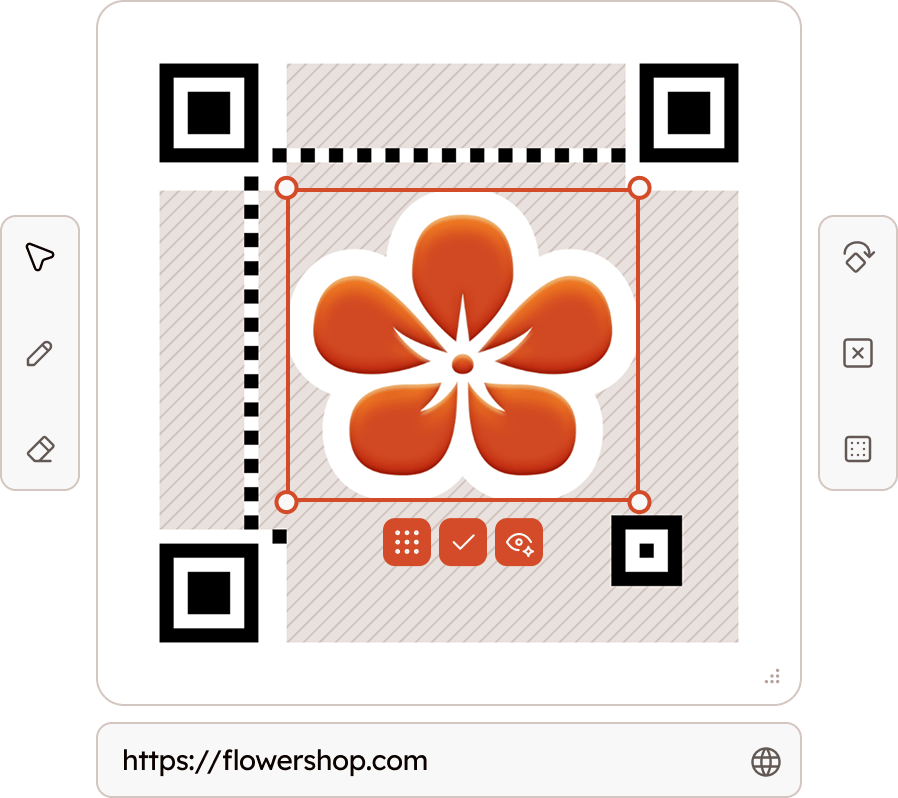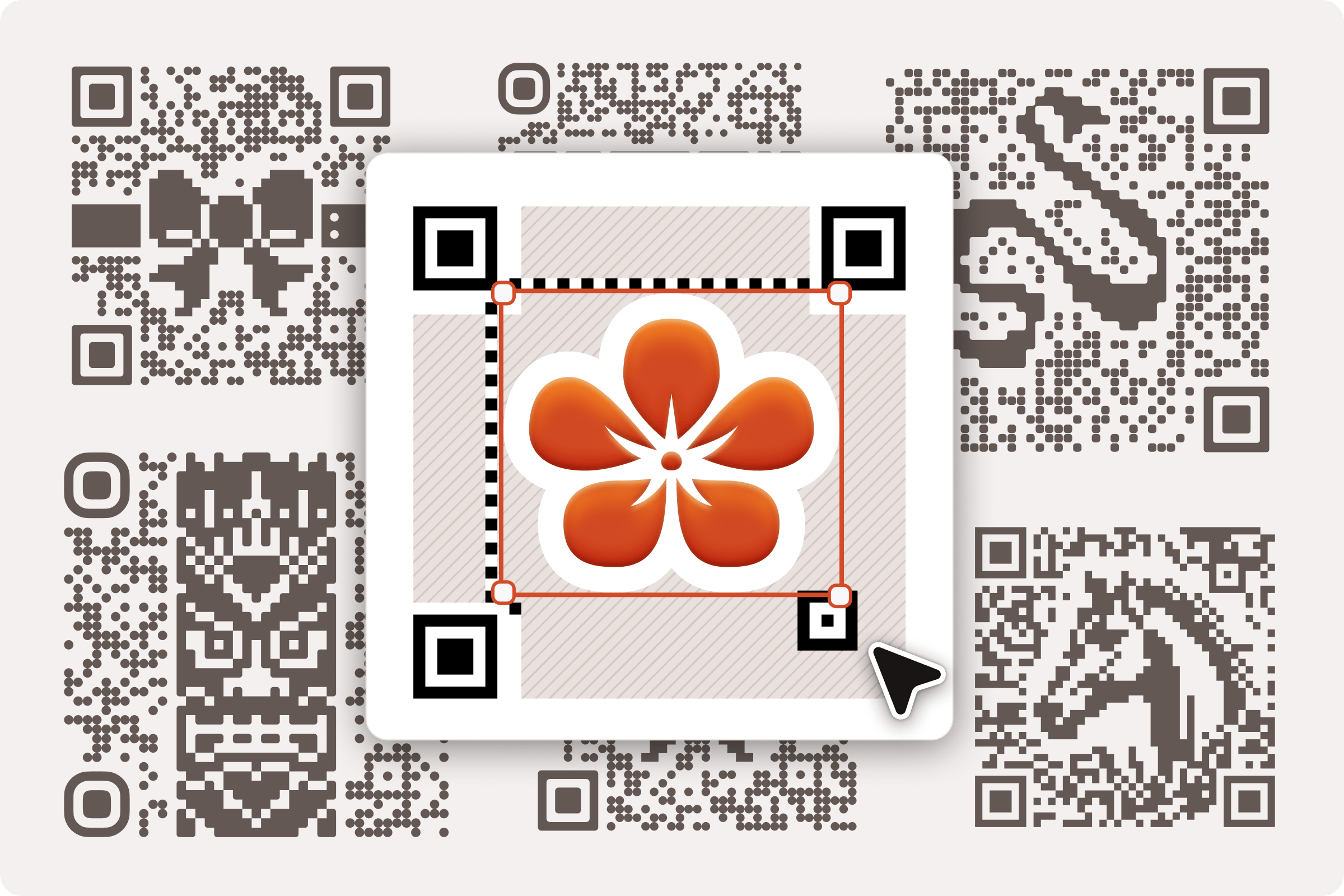
Adding an image to a QR code is the most effective way to personalize it, but a regular QR generator will limit its size and position. In this post, you will understand how images can be applied, why you do not need a QR generator for it, and how we can avoid compromising on quality.
Using small images with error correction
To add an image to a QR code, you do not need a special generator - as long as a few simple rules are followed, placing an image on top of a generated QR code will not break it.
The science behind it is error correction - QR codes store not only a link to your website, but also additional math that allows scanners to understand if any data was scanned incorrectly and repair it accordingly. Of course, there's a limit to how much can be recovered.
Where can images be placed?
QR scanner works in two steps - find the QR code in view; and decode it. To find and interpret the code, it looks for functional modules - they cannot be covered at all, otherwise QR code won't be found at all. To decode the message, the scanner looks at the data modules - because this area has built-in error correction, you can cover it partially with an image.
Note: The standard practice is to center the image - this avoids the immutable functional modules in most cases.
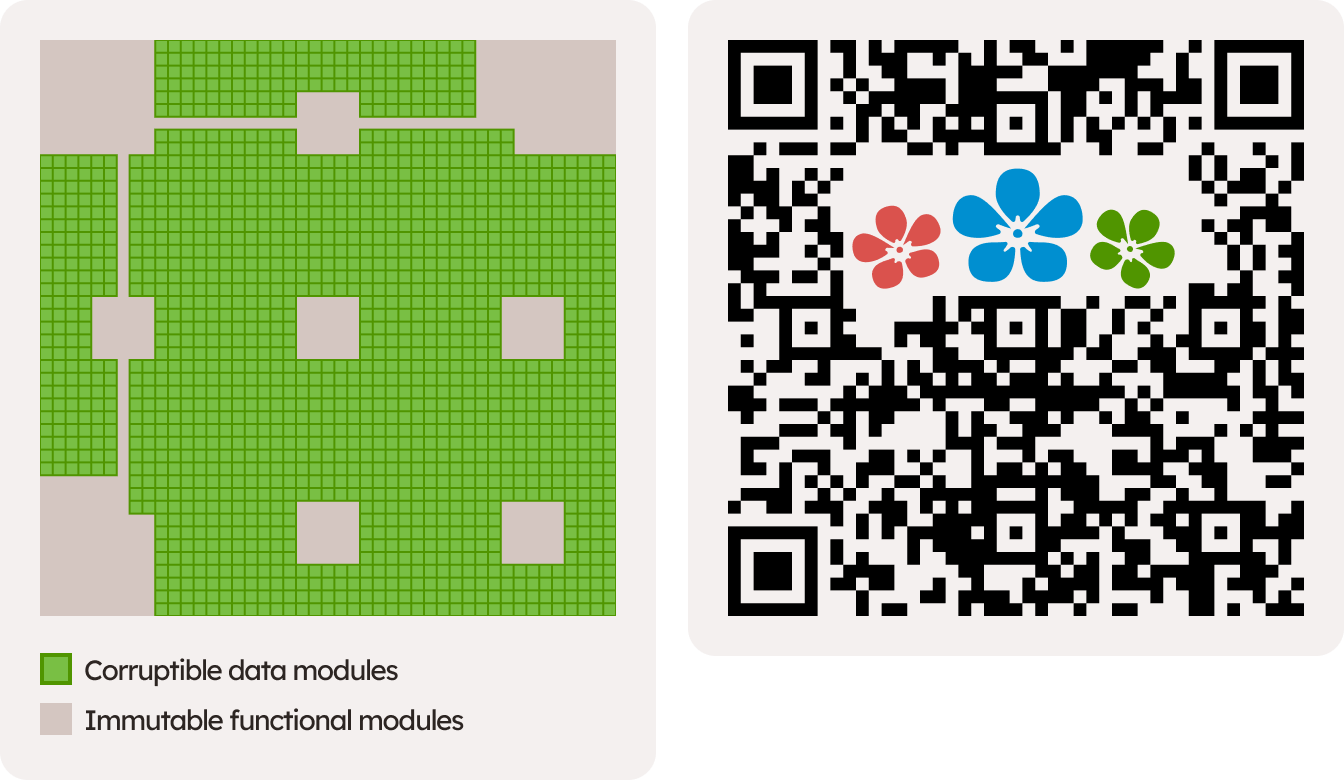
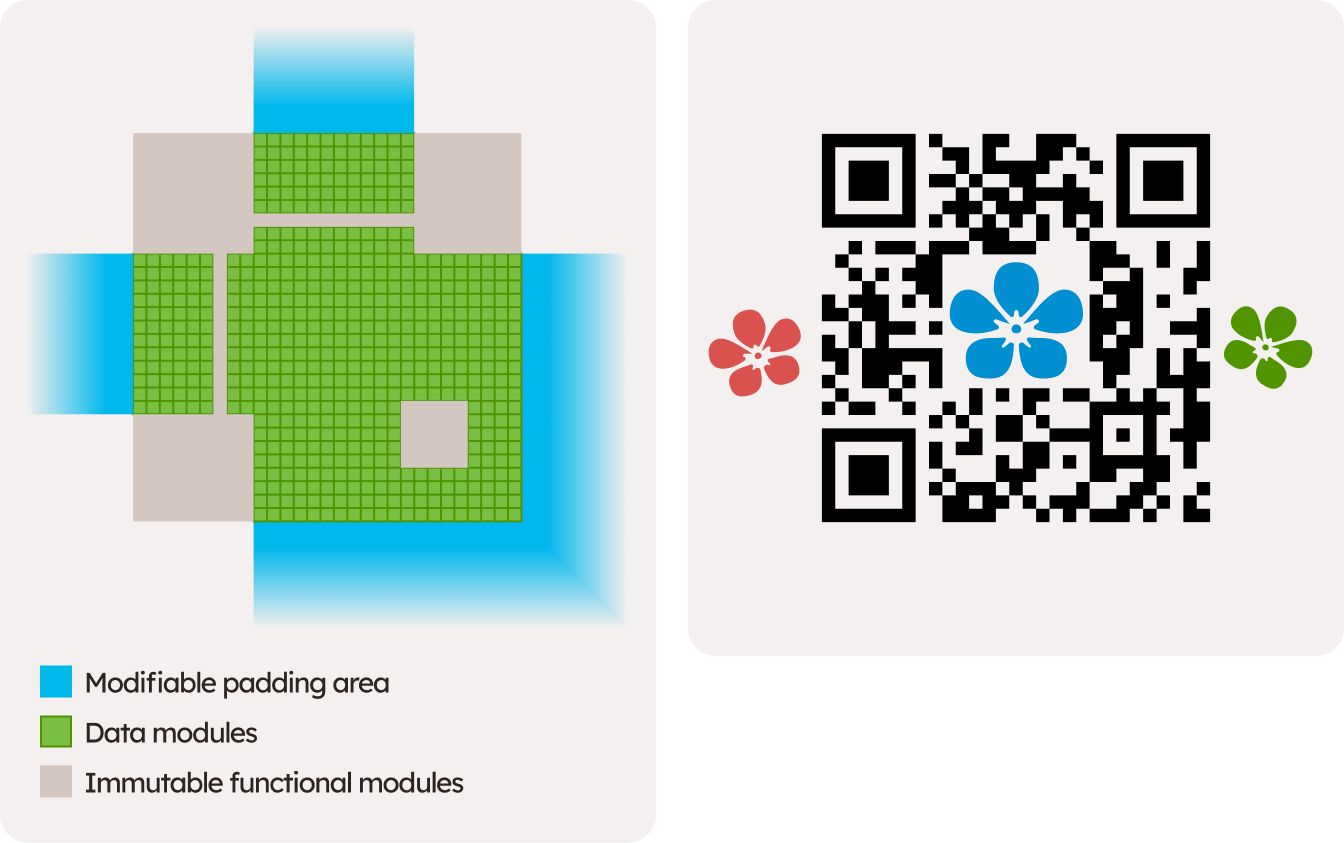
Image placement is not constrained to the QR code zone at all. While padded area around it should remain empty as a standard, only the area around finder squares is used for detecting it, the empty space next to the data modules can be a great place for images, although you may need to get creative to make it look intentional.
How big can the image be?
Maximum size can change depending on what data it covers, in what version, and which error correction level is used.
Error correction level determines what amount of data is allocated for redundant information in exchange for robust scanning, but in most generators the highest (H) is used. The version used is usually the smallest that your input link fits into.
To better understand how your image placement affects the scannability, we have built a tool: it shows how the QR code data modules are divided into different groups (Blocks), and how much of each one's available budget is used.
Each bordered cluster of 8 modules is a codeword. A block can absorb a limited number of corrupted codewords before it can no longer be repaired - drag to select modules below to see that budget shrink in real time:
Image overlay tester
Select an area to corrupt it:
Uncorrupted codeword budget
100%
Honest limitations
Error correction makes it surprisingly easy to add images to a QR code - it's position is flexible, and the image contents are irrelevant, because error correction takes care of it no matter what.
However, it works directly at the expense of quality: the larger the image, the more fragile QR code gets. Even if it's valid on a screen, it can quickly break in the real world when blur, lighting, and distortion get in the way.
As a result, QR generators with logo positioning will keep it modestly small, to maintain good scannability.
Using larger images by encoding them inside the data
A technique we have found is to use a larger QR code version than necessary, and append scan-invisible arbitrary data to match the image. The result ends up as a fully valid code that contains the original link, but has a design incorporated. The image placed over it gets interpreted as real modules, and scans as intended.
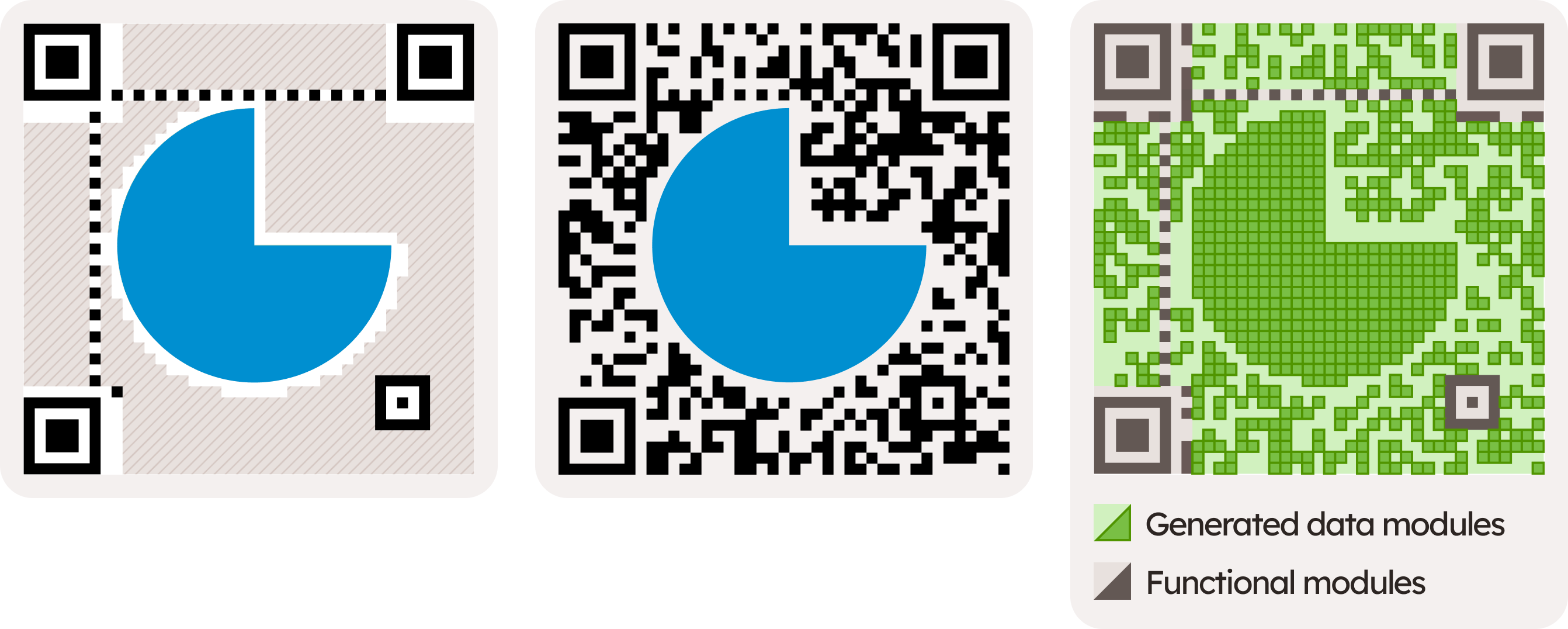
As you might expect, encoding the image into the QR code involves heavy computations - choosing the right mask, optimizing the error correction and the data modules gets tricky. We have incorporated this functionality into our QR editor, which works are a simple design tool, and handles difficult generation logic for you.
Considerations for data encoded image QR codes
When encoding the image into the code, unlike in the error-correction-based solution, what image is used matters a lot. It must consistently be interpreted by a scanner deterministically. To do so, the right image and the right lightness values must be used.
1. Avoid midtone colors
QR code scanners only see black and white. That means any midtone colors end up as ambiguous values, and can become black or white based on minor lighting changes, blur and distortion.
2. Reduce edges and simplify
Scanners check the pixel value at the center of the module, but any warp or distortions are expected to deviate this location by some amount - the pictures are rarely taken perfectly straight. Reducing number of places where this might affect the scanned output vastly improves scannability: avoid busy, complex images, and odd-angled and shaped forms within them.